
New in underway
how to edit a video on your phone by typing
8 October 2026 · 9 min read
Post on X
how to edit a video on your phone depends on what is in the video. for a clip of a day out, the photos app already on your phone does it: open the video, tap edit, drag the handles to trim the ends, save. for a video of you talking, the ends are rarely the problem. the problem is the middle: the um, the false start, the sentence you wish you had not said. that is far easier to edit as words than as a timeline you scrub with your thumb.
this guide covers both. first the tools your phone already has, on iphone and on android, step by step. then the free editing apps people move to when those run out, and what each is good at. then the way that suits talking to camera on a small screen: edit by the transcript, or type what you want changed and let the edit be made for you, which is how underway works on the phone.
how to edit a video on your phone with the apps it already has
every phone ships with a basic editor inside its photos app. it trims, straightens, adjusts the light and adds a filter. for most everyday clips, that is all the editing a video needs, and it costs nothing.
on an iphone, in the photos app:
- open the video and tap edit.
- drag the handles at either end of the frame strip inwards to choose where the video starts and stops.
- tap the dial to adjust exposure, brightness, contrast and colour, and the three circles for a filter.
- tap the crop button to straighten, rotate or reframe, which is how a sideways video gets turned upright.
- tap done, then choose whether to save over the original or save it as a new clip.
on an android phone, in google photos:
- open the video and tap edit.
- drag the trim handles to keep only the part you want.
- tap enhance to improve colour and light, or stabilise to steady a shaky shot.
- add text or an effect if you want one.
- tap save copy, so the original stays as it was.
what neither does well is cut from the middle. trimming takes the start and the end. if the stumble is forty seconds in, you are left exporting two trimmed copies and joining them somewhere else.
when you need more: free editing apps on the phone
the next step is a timeline editor. imovie is apple's free one for iphone and ipad: you can split a clip, delete the piece in the middle, add titles and music, and export. capcut is a popular free editor on both platforms with a timeline, splitting, templates and automatic captions. both are good tools, and for a video built from lots of short shots, a timeline is the right shape.
the trouble starts when the video is one long take of someone talking. a timeline shows you a waveform and some frames that all look the same. to cut a sentence you scrub to find where it starts, split, scrub to where it ends, split, delete, and play it back to check you did not clip a word. on a laptop with a mouse that is tedious. on a phone with a thumb it is the job that makes people give up and post the raw take.
| photos app | timeline app (imovie, capcut) | underway on the phone | |
|---|---|---|---|
| trim the start and end | yes | yes | done for you, on full sentences |
| take out a sentence in the middle | no | yes, by splitting and deleting | tap the sentence, or say which one |
| remove ums and false starts | no | by hand, one at a time | removed automatically on every cut |
| captions | no | capcut can generate them | lit word by word, in your series' style |
| find a line by what was said | no | no, you scrub | yes, every answer is its words |
| reorder what you said | no | yes | never: it stays in the order you said it |
why talking videos are hard to edit on a small screen
a video of you talking is made of words, but a timeline only shows you time. a two-minute answer is a few hundred words, and the edit you want is usually about five of them: an um here, a restart there, one line that went on too long. finding those five by ear, on a screen the size of your hand, is the slow part.
if you are editing by hand anyway, these habits make it faster:
- cut in the pause before a sentence, not on its first word, so the consonant is not clipped.
- keep the order you said things in. a talking video that jumps around reads as produced and loses the thread.
- take out filler and restarts, but leave the breaths. a cut on every breath sounds robotic.
- add captions. many people watch on mute, and a talking video with no captions loses them in the first seconds.
- watch it once with the sound off before you post, to see what a muted viewer sees.
- export at the size you filmed. making it smaller to save space shows on every big screen it lands on.
how to edit a video on your phone by its words
the faster way is to edit the transcript instead of the timeline. the video is transcribed, every sentence is a line of text, and taking a line out of the text takes it out of the video. you read rather than scrub, and you can see a stumble in a sentence before you hear it.
underway is built this way because every episode is an interview: questions asked out loud, your answers, one after another. open an episode on the phone and the cut tab is the player, then your answers, one row each with one switch. turn an answer off and it leaves the episode. tap an answer and you see every sentence in it, and you can strike one or restore one. nothing is ever destroyed: the cut is a recipe made from your takes, so anything you strike can come back, and the file is made again from the recipe when you are done.
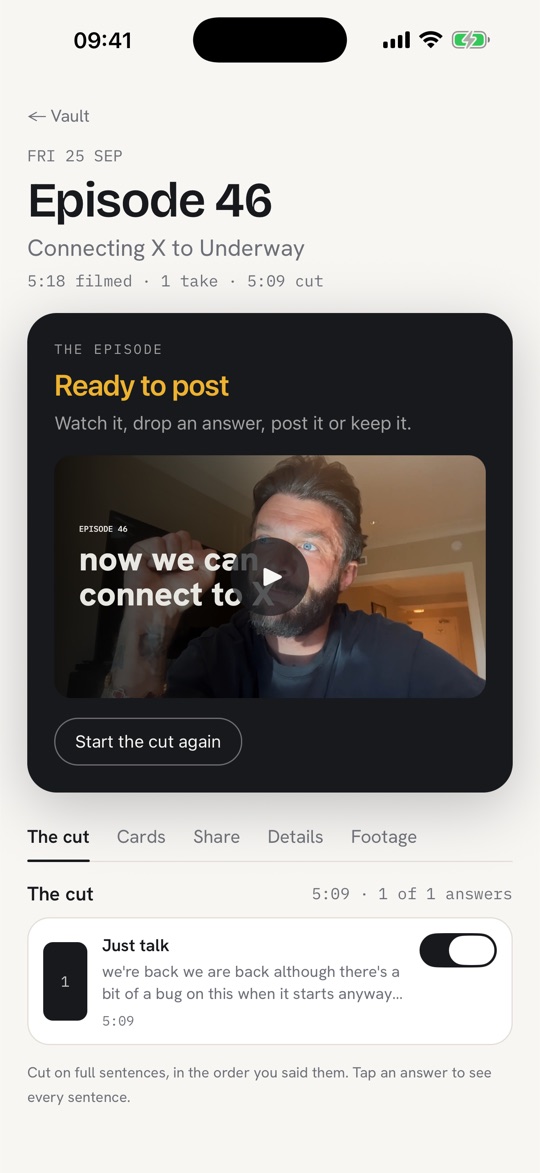
type what you want changed instead of finding it
the cut tab also has a box headed say what to change. write what you want in plain words: take out the um after i said not here, cut the last line, put back the bit about pricing. press change this cut.
it reads the episode as it is cut, every line in order, finds what you pointed at, and changes only that. everything else you did to the cut stays exactly as it was: the answers you switched off, the sentences you struck. a line under the button says what changed. if it cannot tell what you meant, it says so and changes nothing, because a guess would lose your work.
it can only take your own words out and put them back. it never moves a line, never reorders an answer and never adds a word, so the episode stays in the order you said it. then the file makes itself again, and the counter at the top shows it rendering.
next to it is start the cut again, which is a different job. it asks the director to choose the lines afresh from everything you said, and anything you edited by hand goes with it. when the cut is nearly right, change this cut is the one you want.
film one answer again instead of editing it
sometimes an answer is not worth rescuing. on the footage tab, every answer has re-record this answer under it, and a question you skipped has record this answer. press it and the interview opens on that one question, asked out loud again, in the same frame as the rest of the episode. answer it, look at the take, retake it if you want another go.
press use this answer and the episode is cut again from your answers with the new one in its place. the old take is gone: a retake replaces the earlier answer outright. back to the episode leaves without changing anything, as long as you have not filmed a new take. if you had struck single words by hand, check the cut afterwards, because the episode was cut again.
what is done before you open the editor at all
most of what people open an editing app to do is done when the episode is made, so on most days there is nothing to edit:
- filler is removed automatically on every cut.
- captions are lit word by word, in your colours and typeface.
- the episode opens on its card and its number: episode 12, episode 13.
- transitions, dialogue clean-up and face smoothing are chosen once under polish and applied to every episode, so a series looks the same from week to week.
- on the phone you can flip to the back camera mid-answer to show where you are, and the take stays one take.
what still needs a bigger screen
striking single words. the phone strikes and restores whole sentences and whole answers. the word-by-word editor is on the web, under the same cut tab, once fine edit is switched on under polish: click a word to cut it, nudge the end of a line a tenth of a second at a time for a breath or a half-word the transcript never caught, and press remove the ums and ahs for any filler that survived. it needs a pointer and room for the loudness strip, so it stays on a computer.
a two-minute routine for editing on your phone
- watch the episode once on the cut tab, start to finish.
- switch off any answer that went nowhere.
- tap the answer with the stumble and strike the sentence, or type what to change in the box.
- if an answer is wrong rather than messy, re-record it from footage.
- check the name and description on details, then post from share, or keep it in the vault.
most fixes to a video are small. if fixing one means waiting until you are at a desk, it waits, then it gets posted as it is or never gets posted at all. editing on the phone, by the words, is what keeps that from happening.
how do i cut out the middle of a video on my phone?
the photos app on iphone and google photos on android only trim the ends. to take out a piece in the middle you need a timeline editor such as imovie or capcut, where you split the clip either side and delete the part between. for a video of you talking, editing by the transcript is faster: strike the sentence and it leaves the video.
what is the easiest way to edit a talking video on a phone?
edit it as text. in underway each answer is its sentences, so you tap the one to remove, or type what you want changed under say what to change and only that changes.
does change this cut change what i said?
no. it only takes out or puts back your own words. it never adds a word, never moves a line and never reorders an answer.
does re-recording keep the old take?
no. a retake replaces the earlier answer outright, on the phone and in your account, and the episode is cut again with the new one.
can i download the raw video to edit elsewhere?
yes. footage has download raw for every take, on every plan, so you can always take your own recordings into another editor.
what an editor that works from your words does for you: ai that edits your videos for you.
show where you are without stopping the take: switch camera while recording on iphone.
From the series
Founders’ episodes, written up.
Every public episode on underway has a page of its own: the video, then the same account in writing, checked against what the founder actually said.
Browse every series
Building Underway
People pay more than you think to fix a problem
I changed the positioning of Underway from day-one urgency to the pain of not having posted content for years, and raised the cheapest plan from a 14-day trial at $29.99 to a seven-day trial at $129.99. Signups came in faster and the cost to acquire each one dropped a lot. That lets me start working out CAC, margins and recurring revenue, which matters after the Anthropic bill gave me a scare. I'll go through the ads I crafted in another episode.
Building Underway
Train Your Ai Clone To Make Money: part 2
I rebuilt my AI clone in Underway from three short phone recordings, then used it to set up a 12 to 15 second ad. I played back the clone video from last time, which I'd be happy to run as an ad even though the pacing at the end is off, and showed earlier attempts where the face and lighting were wrong. The model finished building while I talked through how the ads get researched and written, and the new ad I queued was still at 0% when I stopped.

Building Underway
Train Your AI Clone to Make Money
I trained my AI clone inside Underway for marketing by recording the three short clips it asks for: sat and talking, up close, and walking with my phone. I turned the voice recording off because Underway already has plenty of my voice from the episodes I've made, so it defaults to that. The walking clip was still saving when I stopped, so how the clone actually looks and how I use it to write scripts and market will be part two.

Building Underway
Meta ads setup for more app sign ups
Underway hit 20 signups, and I'm testing an AI background changer for a new studio setup. I talk about how the signups feel compared to my first big sales back when I started in sales, and why I'm documenting it to see where I am in a year's time. I'm also recording this one sitting in front of a plain wall in my kitchen that gets filled in with a background, after seeing a few people on X post videos doing the same. I don't know yet how it will come out.

Building Underway
How to screen record only one tab (for SEO traffic)
I walked through Underway's "what's worth doing now" section on the Today page, which scans my website and GitHub and suggested filming "how to screen record only one tab" to sit alongside the article I already have up, with a one-click handoff into filming the walkthrough. I also mention we got our first customer yesterday after switching the ads from join for free to entering card details with 14 days free. The hover highlight on that screen isn't working, so the black panels are hard to read, and I'm going to fix that next.
Building Underway
Getting found in AI search terms
I walked through Underway's Found in AI Answers tool, which checks the questions buyers ask ChatGPT, Claude and Gemini with web search on and reports whether the answers name you, cite your page or name a competitor instead. This week I'm named in 1 of 17 answers, cited by ChatGPT for a question about a tool that interviews you by voice and turns the answers into a podcast episode. Nine of the searches name someone else, and for each one the tool gives me a question to say out loud and answer on camera, then publishes the answer on my own site under that heading. I haven't filmed those answers yet.